
A Google My Maps alternative: move your map to squidmaps with KML
Export a Google My Maps map to KML or KMZ and import it into squidmaps, keeping your layers and colors, for a cleaner map and a better embed.

Google My Maps is how a lot of us made our first custom map. It’s free, it’s familiar, and it’s fine for getting some pins in front of a friend. But when that map is going on your website, or you care how it looks, you run out of options quickly: you’re choosing from a short list of Google’s basemaps, and every embed looks the same.
squidmaps is a web map maker built for exactly those maps, and it can now read your Google My Maps export. In a few minutes, you can bring a map over with its layers, colors, descriptions and shapes intact, and the closest matching icons. Your original map stays where it is, so trying this costs you nothing.
Here’s why you might want to do it, and the steps to get it done.
The same map, in both tools
I made a small map of landmarks in Manhattan’s Financial District in Google My Maps, then imported it into squidmaps. The only thing I changed was an icon for the one point that had no match. Both of these are the real, live maps, so pan, zoom and click around.
Here’s the original in Google My Maps:
And here’s the same data after importing its KMZ file into squidmaps:
Why move a map from Google My Maps to squidmaps?
A basemap that lets your data stand out
Look at the Google map above. The landmarks are competing with restaurants, subway stations and other attractions that you didn’t put there. That’s great for finding lunch, but on a map you made to show something specific, it’s noise.
squidmaps basemaps are quieter by default, so your own points, lines and areas are what people see. There are four to choose from: Streets, Light, Gray and Dark.
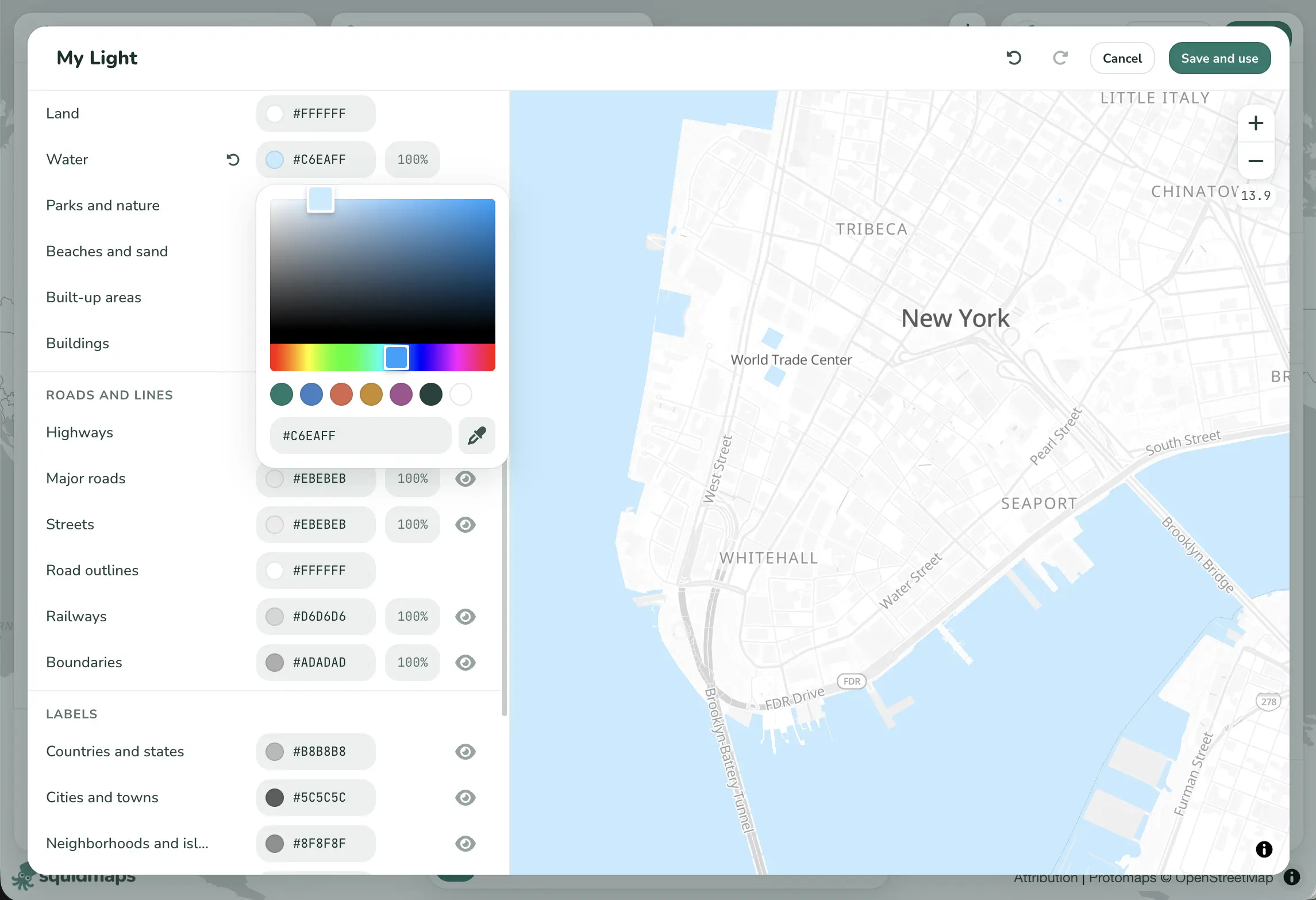
If you want more, you can make a custom basemap in your own colors. Change the land, water, parks, roads and labels, or fade out or remove buildings, roads and points of interest altogether. Save it once and use it on any of your maps.
More ways to style your map
My Maps gives you a set of icons, a color palette, and control over line width and fill. Styling in squidmaps goes further:
- Points can be circles, marker pins or emoji, in the colors and sizes you choose, with about 2,000 Font Awesome icons to choose from.
- Labels can sit on your points, and they move out of each other’s way.
- Lines and areas can use any color and opacity, with dashes on lines.
- Text and freehand drawings let you annotate the map directly.
- A legend explains your symbols to visitors.
- Zoom limits and bounds keep visitors on the part of the world your map is about.
Popups can be a card or a full side panel, with images and formatted text, and tooltips can show on hover.
A better-looking embed
A My Maps embed comes with a dark Google header and Google’s branding over your map. A squidmaps embed has a title panel with your description and your legend, plus a small squidmaps credit, and it fits in on a personal site, a newsroom story or a newsletter landing page. When you edit and republish, every embed updates on its own, with no new code to paste.
Made for phones as well as desktops
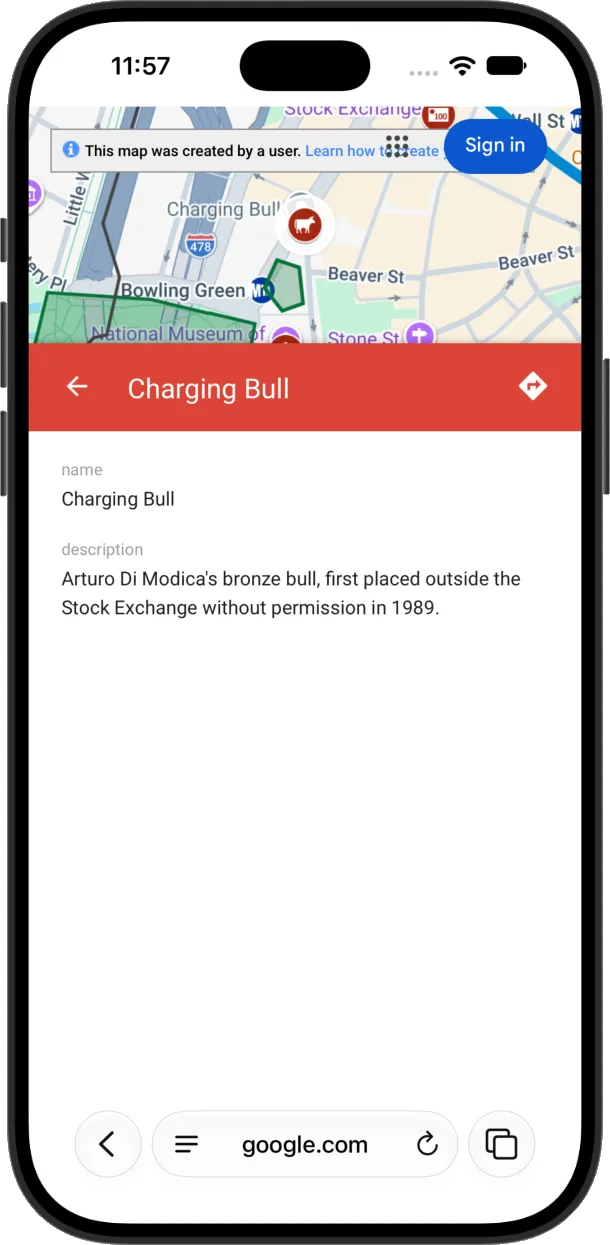
Plenty of people will open your map on a phone, so it’s worth comparing the two there. In My Maps, opening a place shrinks the map to the top of the screen, with a banner and a Sign in button over it, and the details underneath are labeled with their raw field names, “name” and “description”.
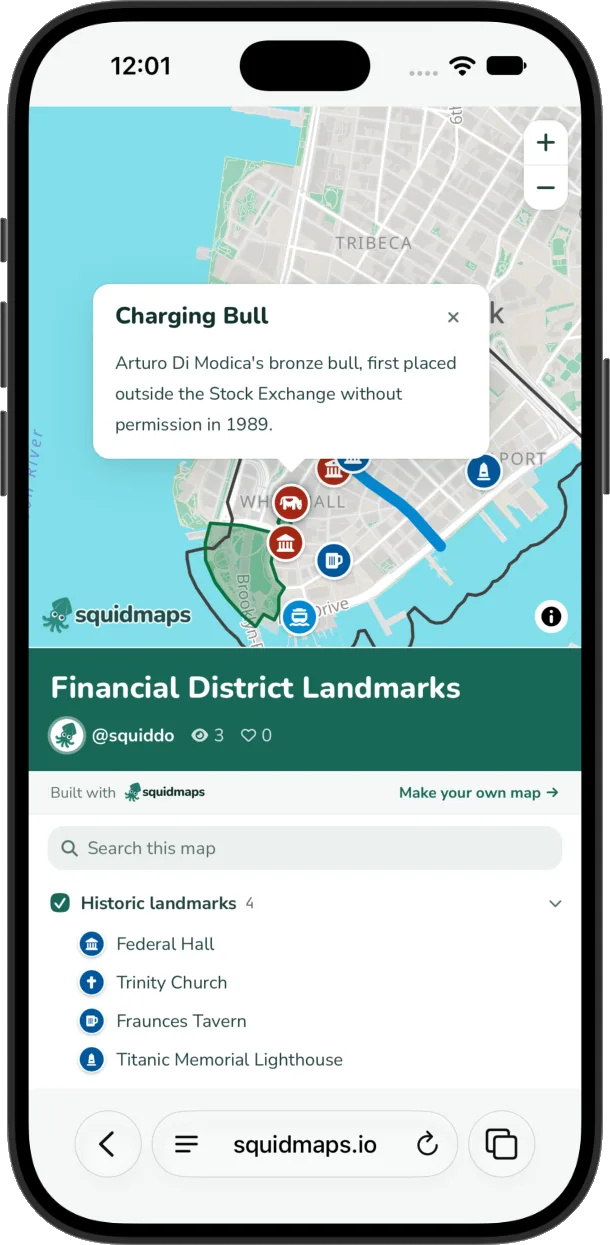
On squidmaps, the same tap opens a popup on the map, so you can still see where the place is. Your title sits below the map, along with search and a list of your features, sorted into their folders.
You can preview your map on a phone-sized screen before you publish, and the editor itself works on phones, so you can fix a typo from the sidewalk.
How to export your Google My Maps map to KML
You’ll need a KML or KMZ file from Google My Maps. KMZ is just a zipped KML, and squidmaps reads either one.
- Open your map in Google My Maps.
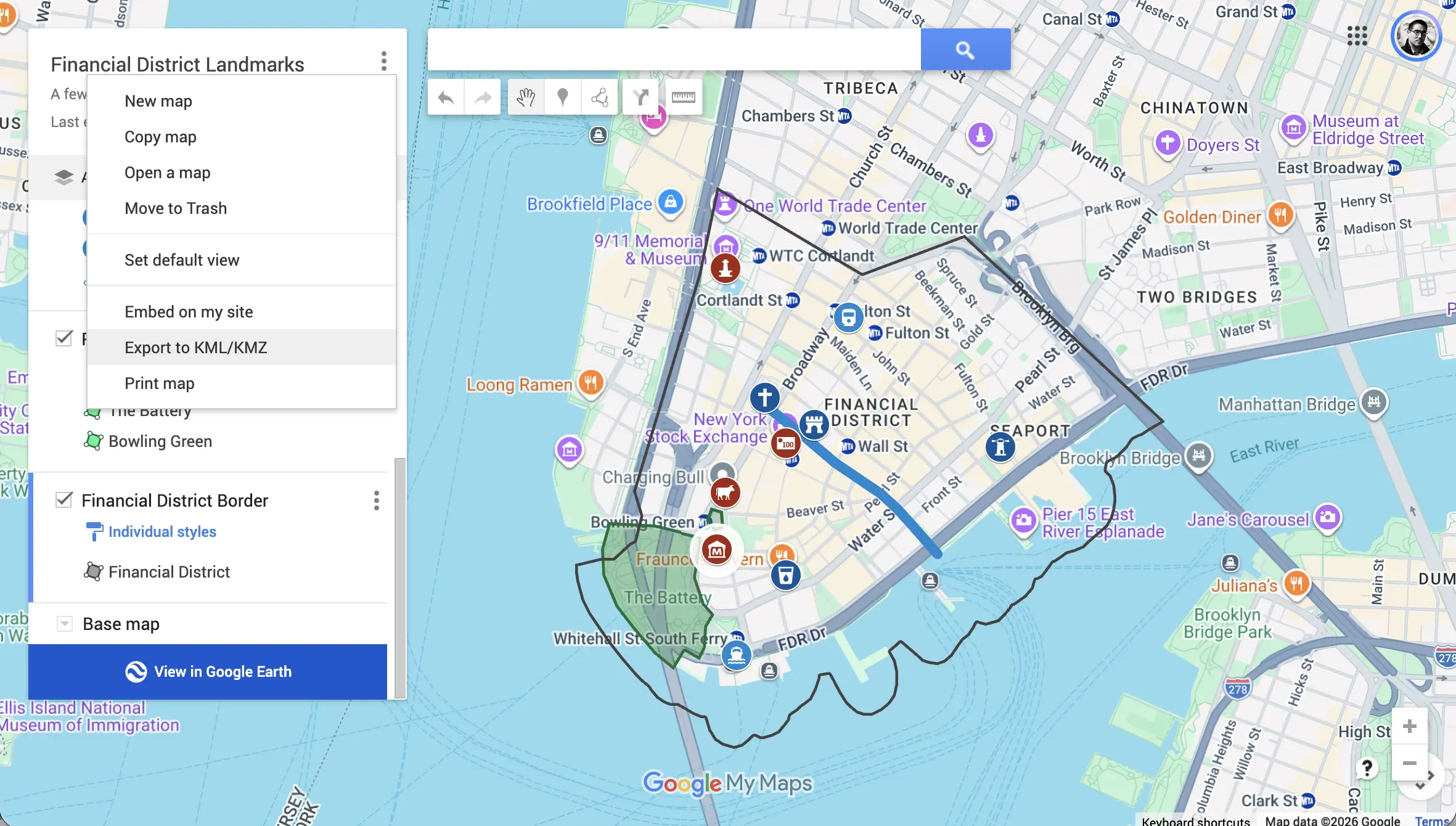
- Open the three-dot menu beside the map’s title, and choose Export to KML/KMZ.
- Choose Entire map, so every layer comes along.
- Leave Keep data up to date with network link KML unchecked. That option gives you a file that only links back to Google, without your features in it.
- Choose Download.
How to import a KML or KMZ file into squidmaps
1. Make a new map
Sign in to squidmaps, or request an invite if you don’t have an account yet, and start a new map from your dashboard.
2. Import your file
There are two ways, and both end up in the same place:
- Drag and drop the file anywhere onto the editor.
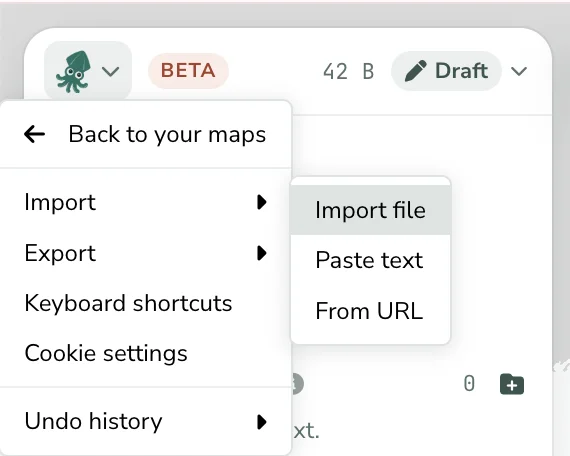
- Open the menu under the squid in the top left, choose Import, then Import file.
3. Review the import
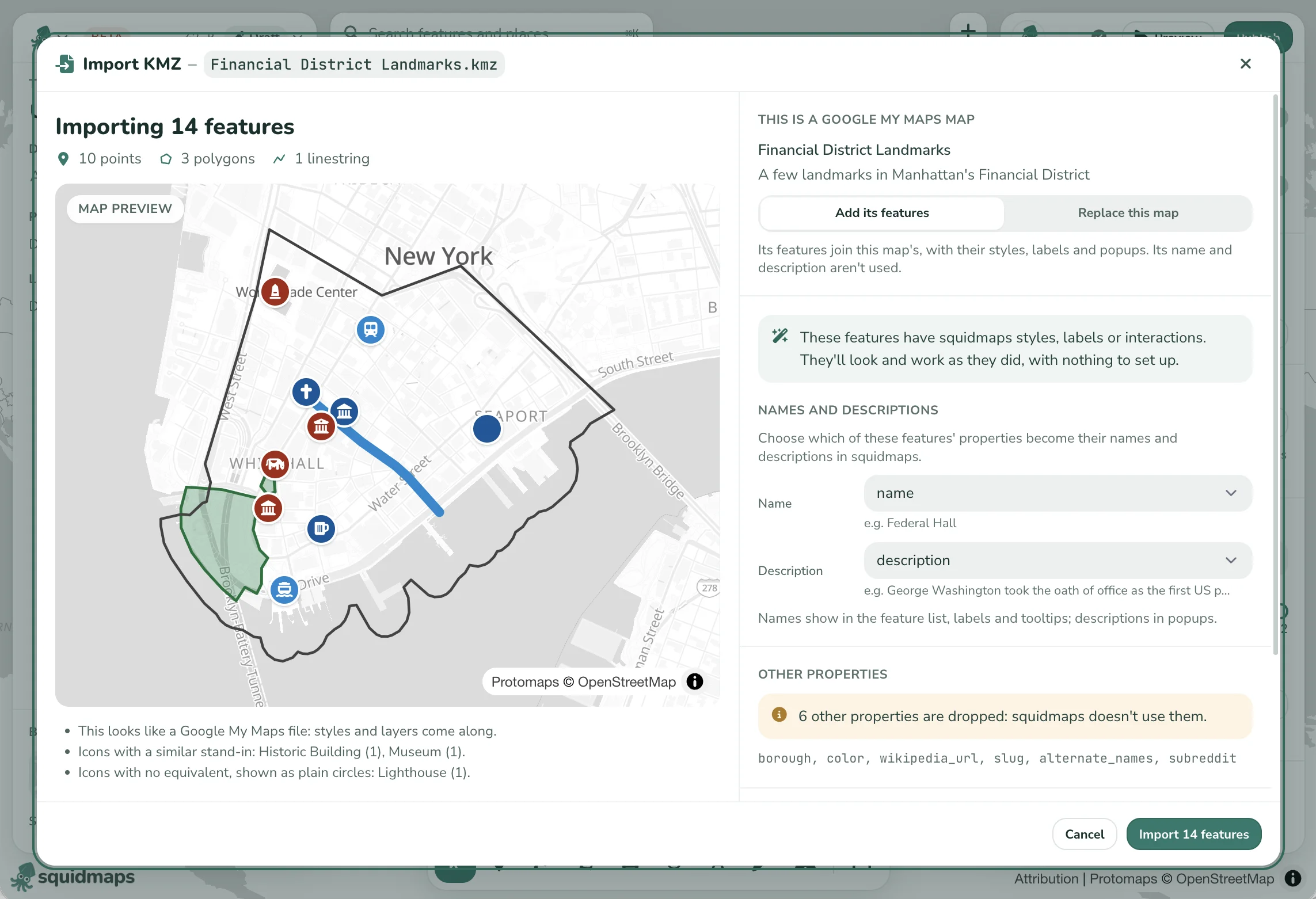
squidmaps recognizes a file from Google My Maps and opens a review, with a preview of your features as they’ll look. Hover over a feature to see what it holds.
The notes under the preview tell you how your icons came across, including any that use a similar stand-in and any with no equivalent.
4. Bring in the map’s name and description
On the right, you have a choice under This is a Google My Maps map:
- Replace this map brings in your features along with the map’s name and description. This is the one you want on a new map. It asks you to confirm, since it replaces whatever’s there, and it puts the map on the default basemap.
- Add its features adds them to the map you already have, without changing its name or description. Use this to combine several maps into one.
Your layers become folders, so the structure you built in My Maps is still there.
5. Style it and publish
From here it’s an ordinary squidmaps map. Try a different basemap, add a legend,
or swap in a better icon. When you’re happy,
publish it to get a link at
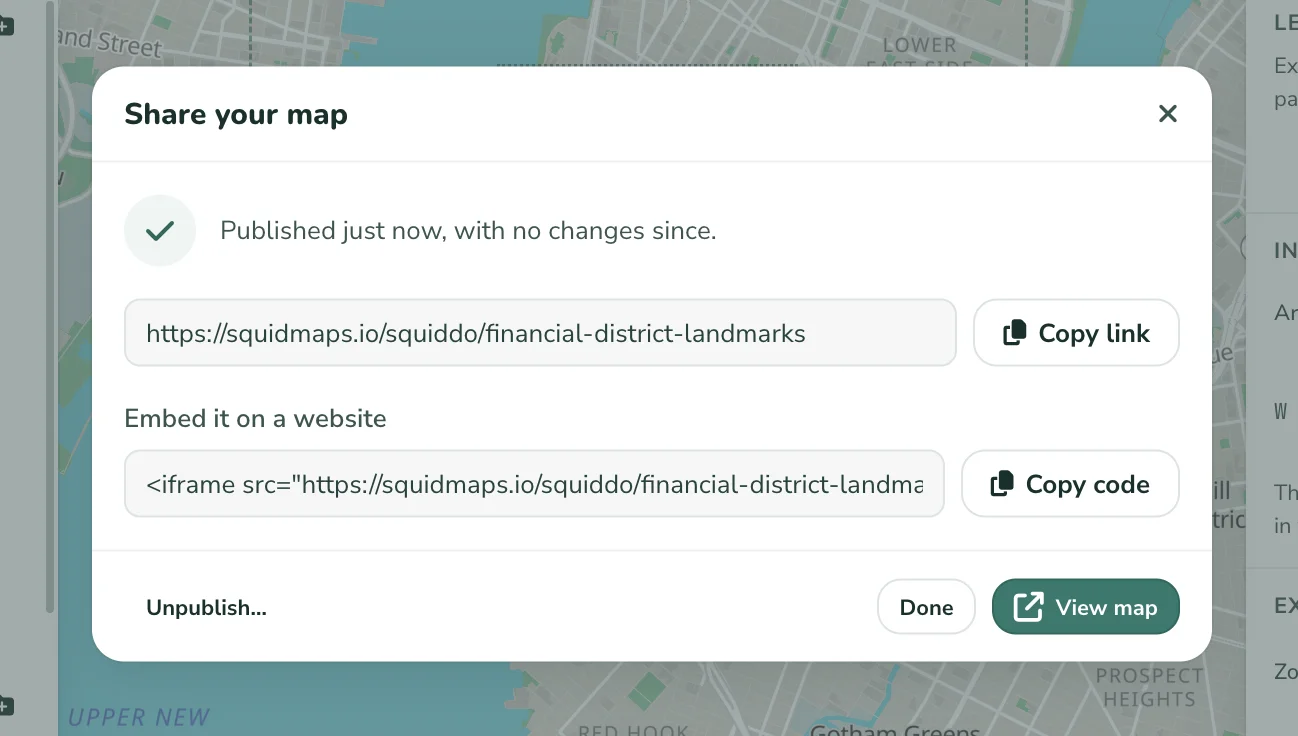
squidmaps.io/you/your-map, and find the embed code under Share.
What carries over, and what doesn’t
Most of a typical map comes across, but not everything does.
What comes along:
- Layers, as folders
- Points, lines and areas, with their names and descriptions
- Colors, line widths and opacity
- Links in descriptions
- The map’s name and description
What doesn’t:
- Some icons. Most of My Maps’ current icons have an exact or close match. Some don’t: the Titanic Memorial Lighthouse came in as a plain circle, because there’s no lighthouse icon to match, so I picked the closest one I could find.
- Custom icons and older icons. Icons you uploaded and most of My Maps’ “older icons” come in without an icon.
- Photos. Photos in descriptions are hosted by Google, so they aren’t imported. You can upload them to your points in squidmaps.
- Extra data columns. Any other attributes on your features are dropped, and the review lists them before you import.
The notes in the review tell you what happened in your file before anything is added to your map.
Common questions
Is there a free alternative to Google My Maps?
squidmaps is free during the beta, with limits on the number of maps and the size of each one. We’ve also shared the plans we’re considering after that.
Does importing change my Google My Maps map?
No. Exporting only makes a copy, so your original keeps working, and so do any places you’ve embedded it. Later changes don’t sync between the two, so pick one to keep updating.
Can I import a KML file that didn’t come from Google My Maps?
Yes. squidmaps imports KML and KMZ from Google Earth and other tools, along with GeoJSON, CSV, shapefiles and more. Their placemarks come in as features with their names and descriptions, and you style them in squidmaps.
How do I embed the map on my website?
Publish your map, choose Share, and copy the code under Embed it on a website. It’s an iframe that works anywhere you can paste HTML. See Embed your map.
Try it with your own map
If you have a Google My Maps map you’ve been meaning to make look better, export it and drop it in. It takes a few minutes, and your original isn’t going anywhere.
And if something doesn’t import the way you expected, let me know. Real files from real maps are how this importer gets better.